Select and Download the Test
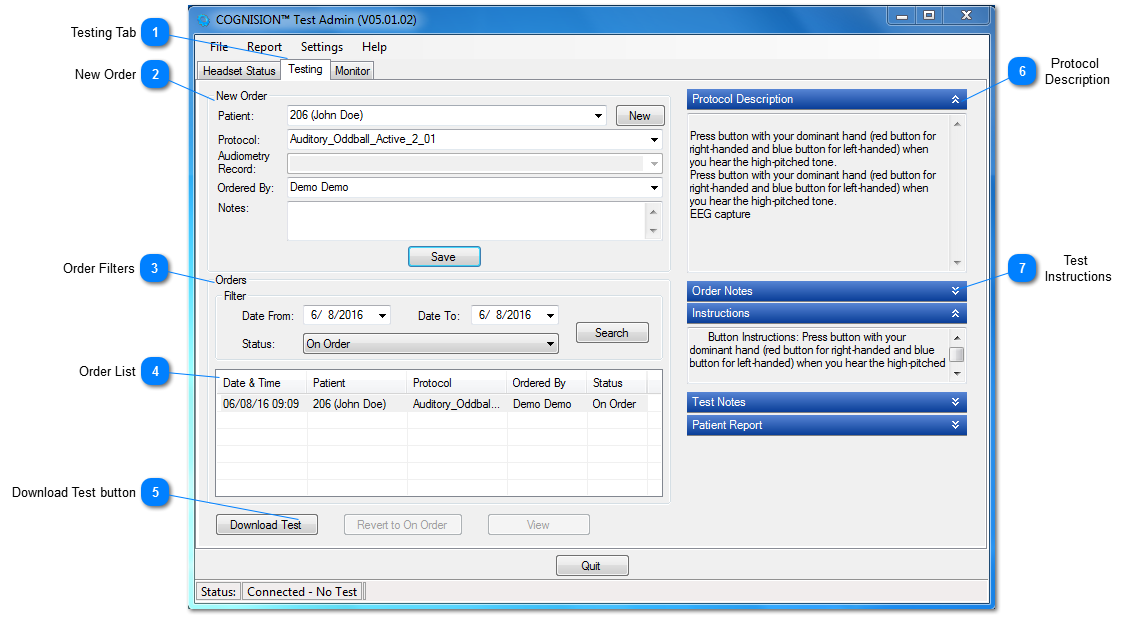






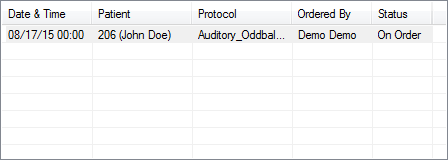
 Download Test button  Click Download Test to send the test to the HCU.
NOTE: If the battery is low, you will get the following message:
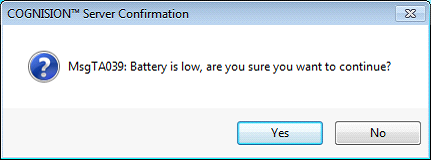 Click Yes to continue.
NOTE: The HCU should be connected with status "Connected - No Test".
CAUTION: If the HCU status is "Connected - Data Ready", a message will be displayed cautioning the user that downloading a new test will delete the data stored in the HCU. Once deleted, it can not be recovered. Before doing this, you should confirm that it is OK to delete the data.
CAUTION: If the HCU status is "Connected - Test Ready", a message will be displayed cautioning the user that downloading a new test will delete the test currently in the HCU. Once deleted, it can not be recovered. Before doing this, you should confirm that it is OK to delete the test.
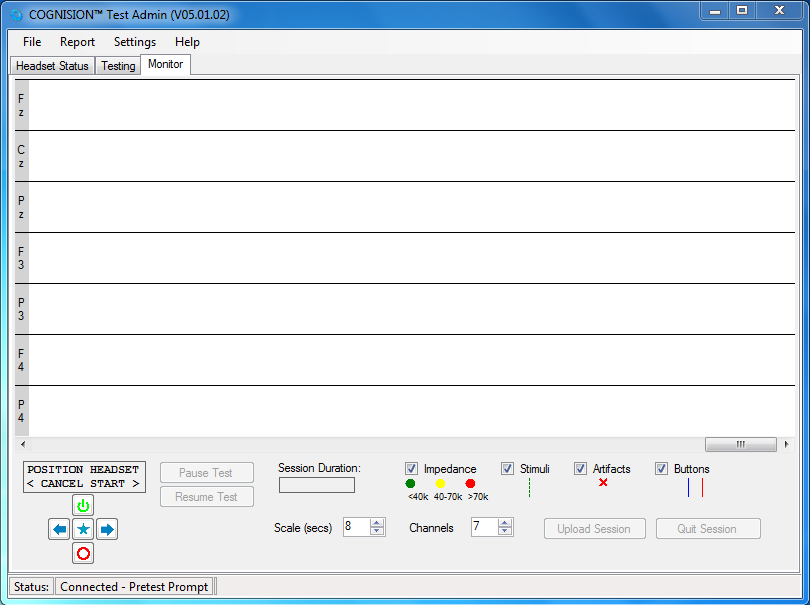
Once the test download is complete, the Test Admin module will switch to the Monitor tab.
 |