Software Installation
Follow the instructions below to install the COGNISION™ Software System:
NOTE: When installing the COGNISION™ Software System, the user must have Administrator rights on their client computer.
Download Link
Download the installation package using the following link: http://cognision.neuronetrix.com/production/installer/CognisionSetup.zip
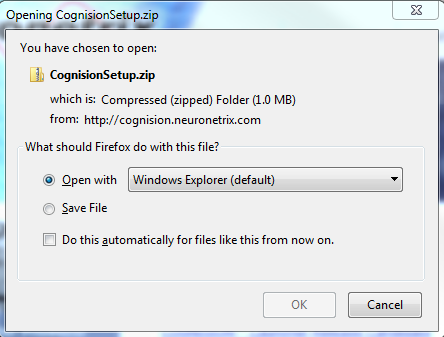
 File Save
Click Save to save the file to a temporary location such as the Desktop.
NOTE: This is a large file and may take a few minutes.
Run Setup
After the download is complete, open the installation .zip file and double-click on the “setup.exe” file to initiate the COGNISION™ Launcher Setup Wizard:
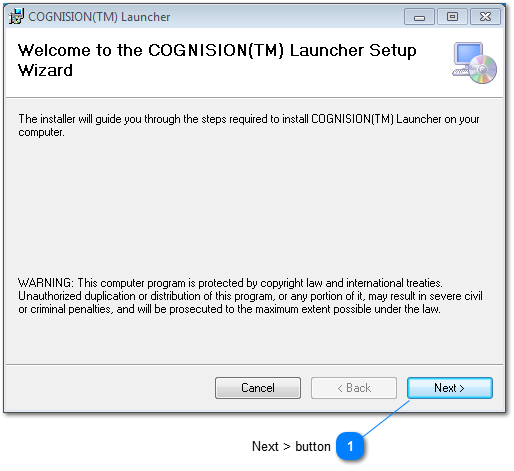 Next > button
Click Next to install.
Select the Installation Folder
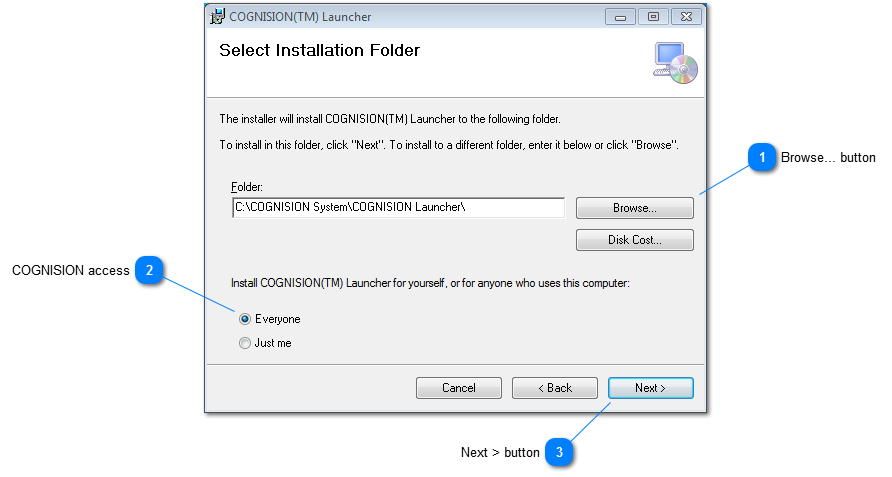 Browse... button
Click Browse to go to the desired installation folder. The default folder is preferred.
 COGNISION access
Select who will have access to COGNISION. Everyone is preferred.
 Next > button
Click Next to continue.
Confirm Installation
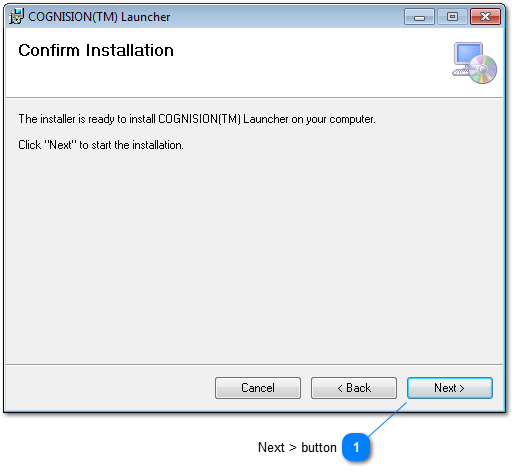 Next > button
Click Next to confirm the installation.
Complete Installation
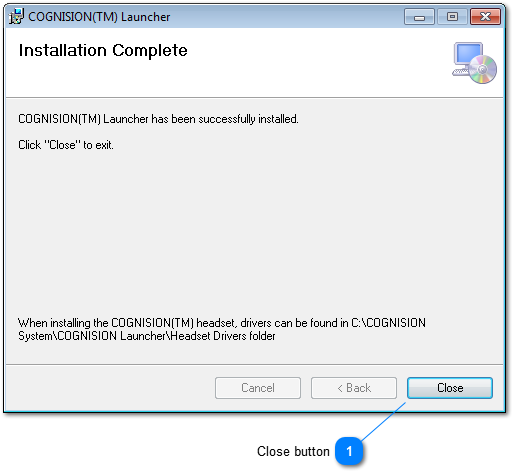 Close button
Click Close upon completion
Launch COGNISION™
After installation, run COGNISION from the Windows Start menu.
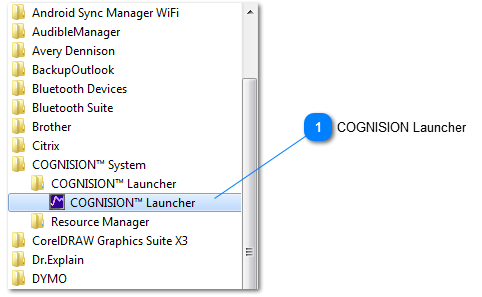 COGNISION Launcher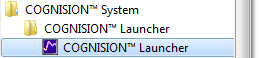
Run COGNISION™ Launcher.
Install the Online Support Plugin
The first time COGNISION™ is run, the NTRplugin (for online support) will be installed.
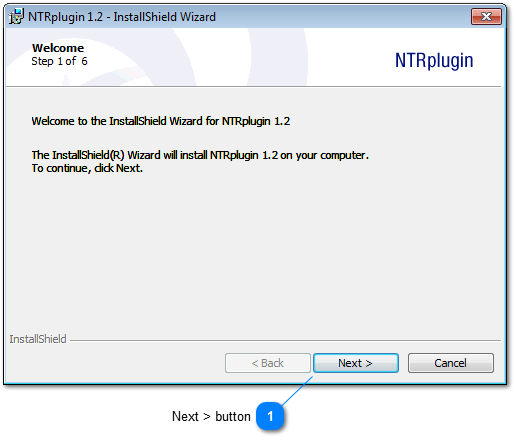 Next > button
Click Next to install.
Accept the License Agreement
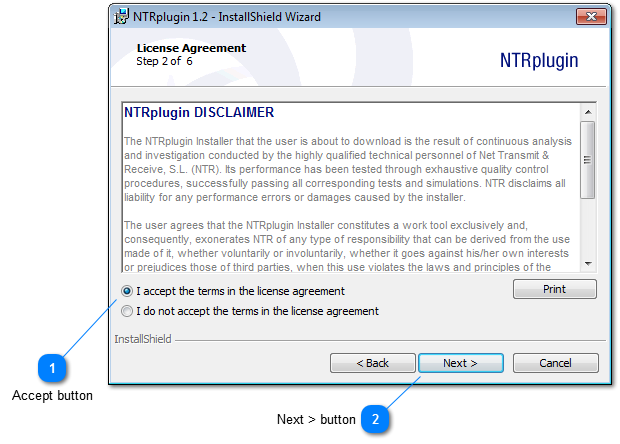 Accept button
Click to accept the terms of the agreement.
Install the NTRplugin
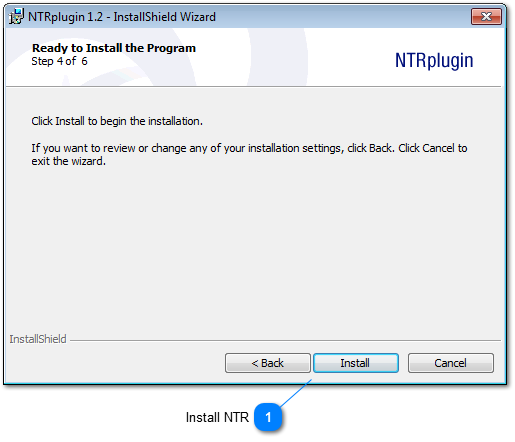 Install NTR
Click to install.
Finish the Installation
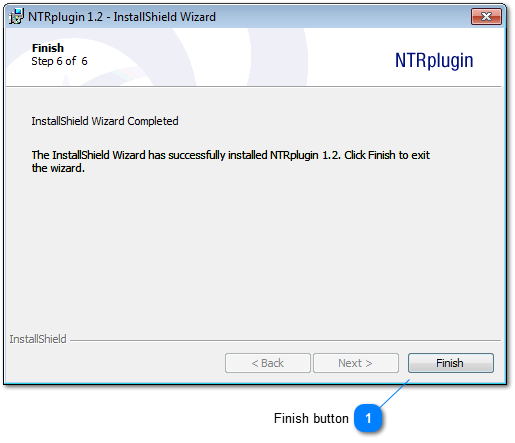 Finish button
Click Finish to complete the installation.